Drill Mode in Tracks

Design @ Tap Five
Marching ensembles don’t rehearse in measures. They rehearse in sets, pages, and counts.
Until now, tracks in Subdivide followed musical structure: sections, time signatures, tempo changes. That works for learning the music, but it doesn’t match what’s happening on the field. The brass are asking for “page 12.” The battery is talking about “set 34.” The staff wants to rep “counts 65-96.” Your click track only knows measure numbers.
Drill Mode bridges that gap.
How it works
Drill Mode adds a second navigation layer inside any existing track. You define drill pages, each with its own count length and an optional label. Pages are numbered automatically by position.
No new track type. No duplicate version. No rebuilding.
Once your drill pages are in place, you can start on any page, loop a single page, repeat a range, or rehearse transitions between pages, all while your base track stays locked. Tempo changes, time signatures, accents, subdivisions, everything you built into the track remains exactly as it was.
Music mode and drill mode, one track
Every track now has two ways to navigate it. Music mode works the way it always has, by musical sections and structure. Drill mode lets you move through the same track by pages and counts.
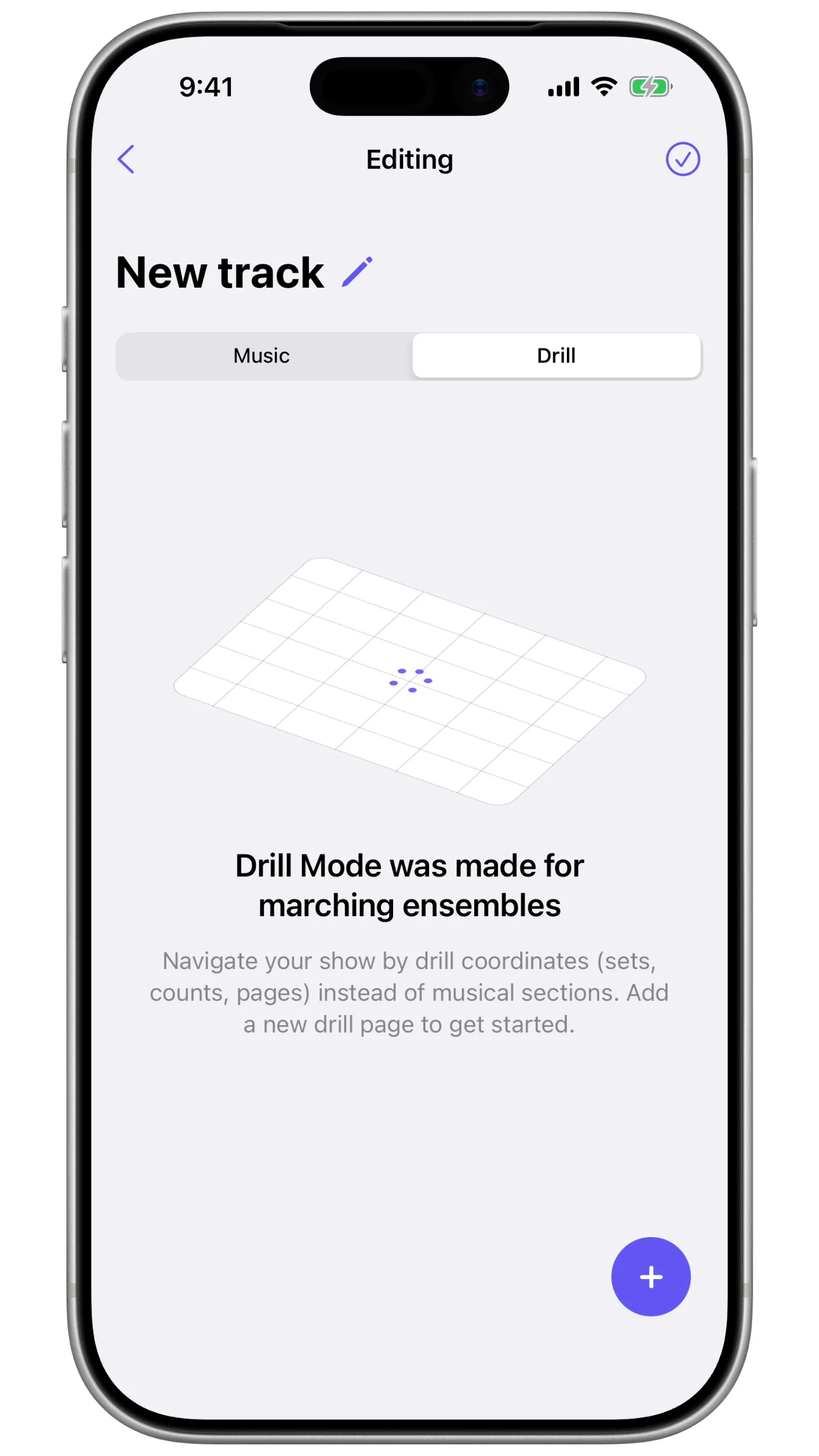
Switch between them at any time. Teaching a new chunk of drill? Use drill mode. Cleaning a musical phrase? Switch back to music mode. You’re not choosing one workflow over the other. You’re choosing the right one for the moment.
Built for how you actually rehearse
This feature was shaped by conversations with directors, techs, and performers who needed their click to match the way they teach and rehearse on the field. If your ensemble is already using tracks for sectionals or individual practice, drill mode makes them field-ready.
Drill Mode in Tracks is available now in the latest version of Subdivide.